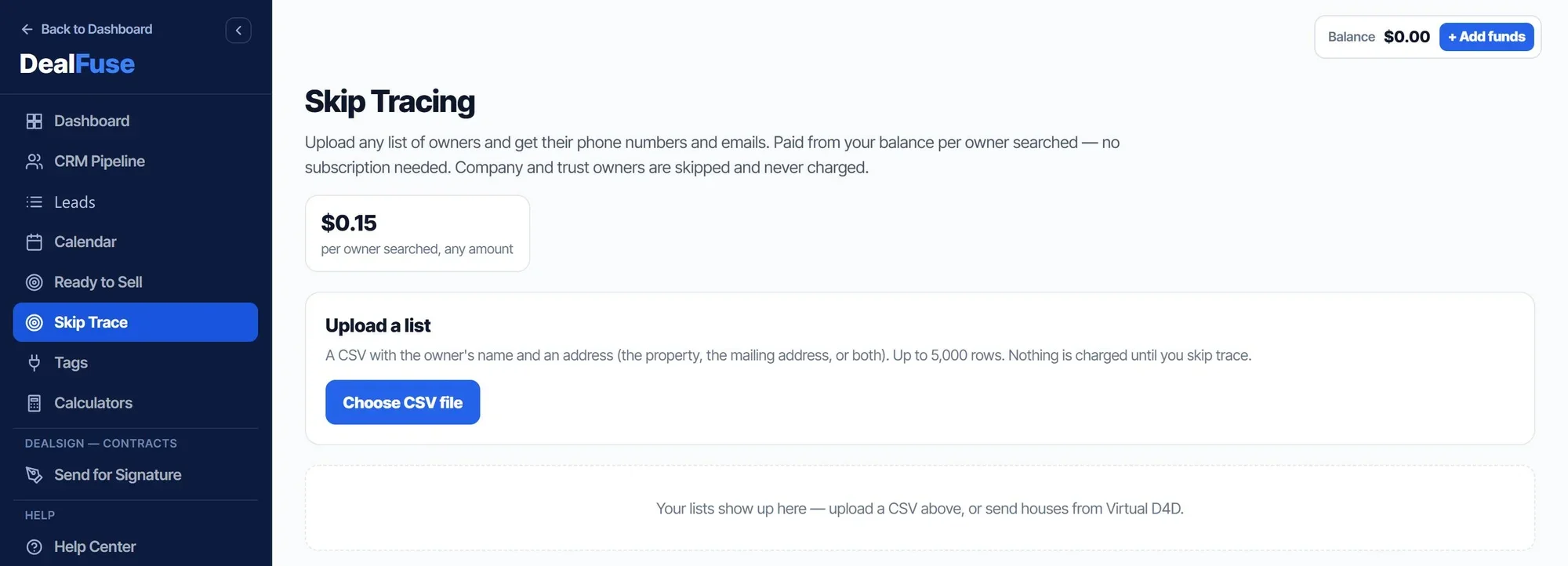
Start each day on the Dashboard
The Dashboard is your morning check. The five numbers across the top tell you where you stand: New leads, Follow-ups due (with how many are overdue), Active pipeline, Under contract and Signed.
- Up next lists the calls and appointments due, oldest first. Overdue ones show in red.
- Pipeline shows how your leads split across New, No contact, Nurture, Warm, Hot and Under contract.
- The three buttons at the top right do the most common jobs: New lead, Schedule and Send contract.
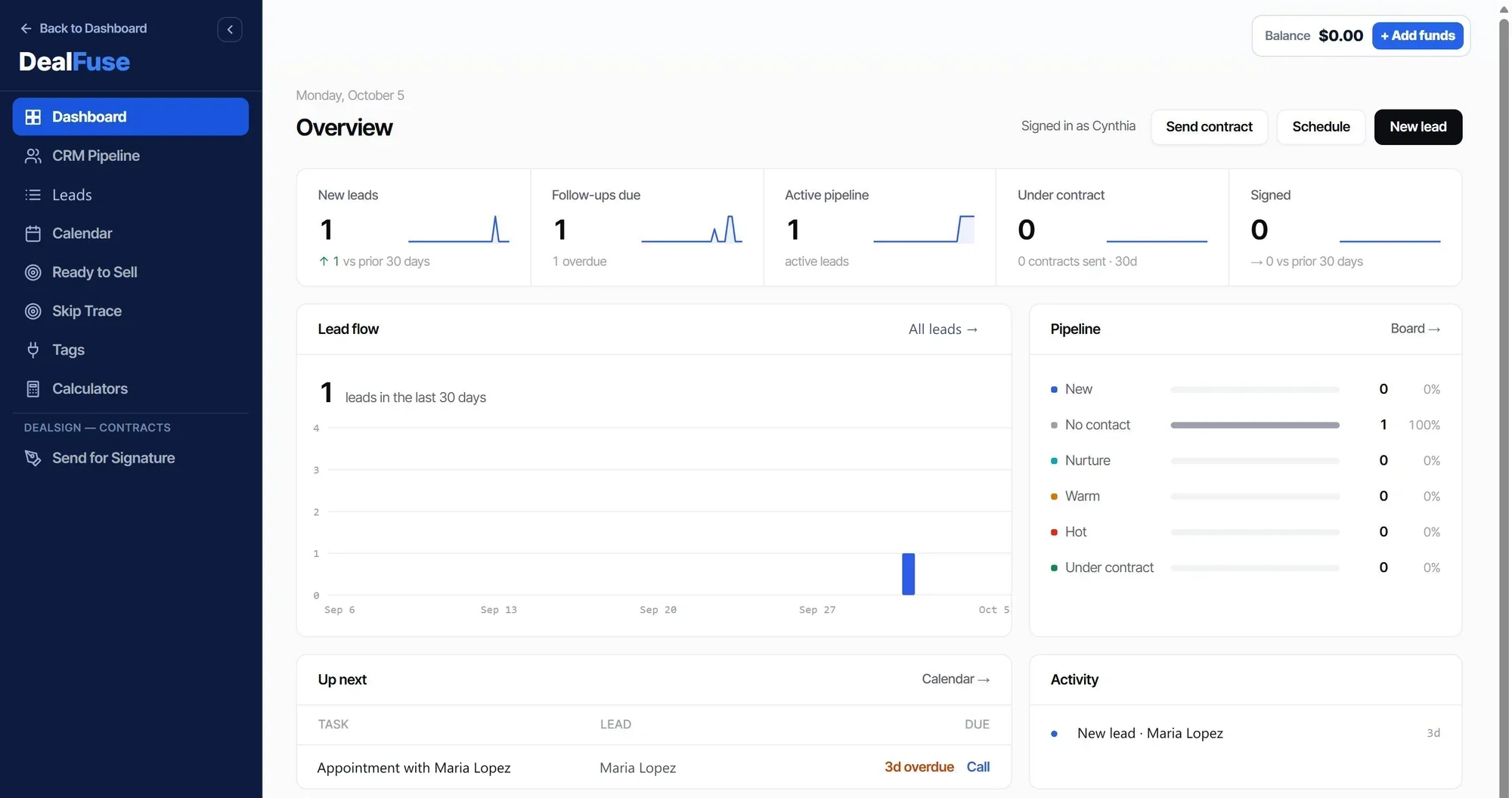
Move deals along in the CRM Pipeline
The pipeline is a set of boards. Each lead is a card, and each column is a stage. Drag a card to the next column as the deal moves.
- Lead Management is where new leads start: New, No Contact, then Nurture.
- The other boards cover the rest of the business: Acquisitions, Transactions, Deep Prospecting, Wholesale, Flips and Rentals.
- Add New Card adds a lead straight onto the board you are looking at. Filters and Sort by narrow a busy board.
- Click the eye icon on a card to open the full lead: phones, property, notes and history.
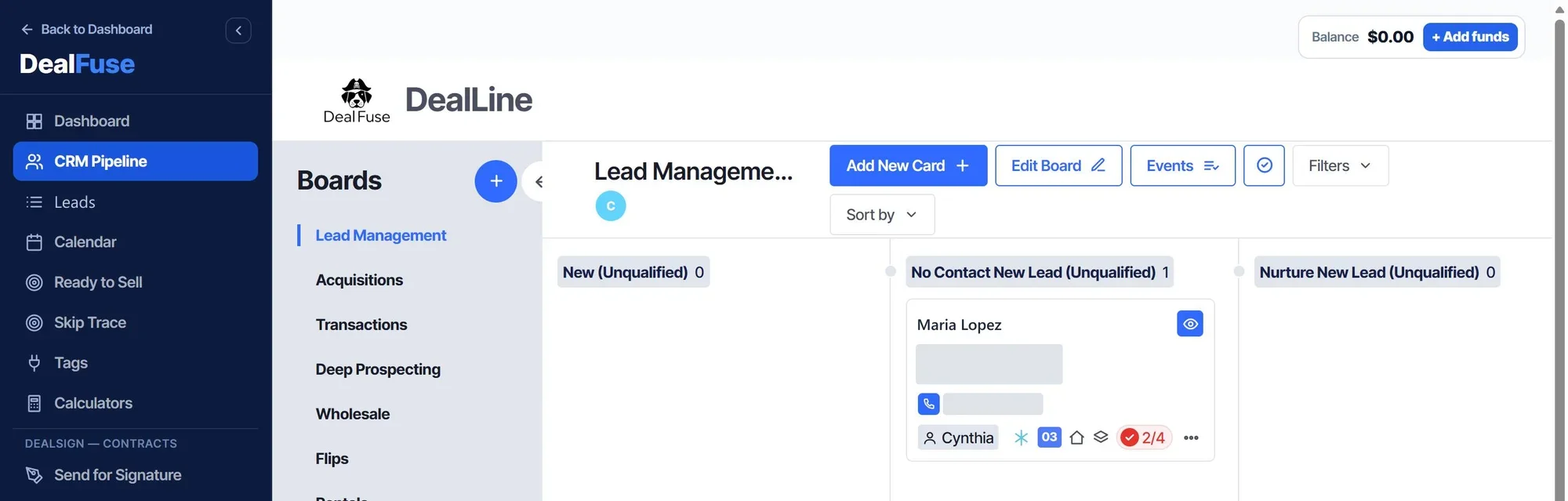
Work your follow-ups from Leads
Leads is every lead in one list, with its next to-do. The buttons along the top filter the list: Overdue, Due today, Scheduled and No to-do.
- Start each session with Overdue, then Due today.
- Tick several leads to tag them as a batch and start them through a follow-up sequence. The tag (for example 03 Call Attempt 1) shows which step each lead is on.
- + New lead and the search box are at the top right.
Keep appointments on the Calendar
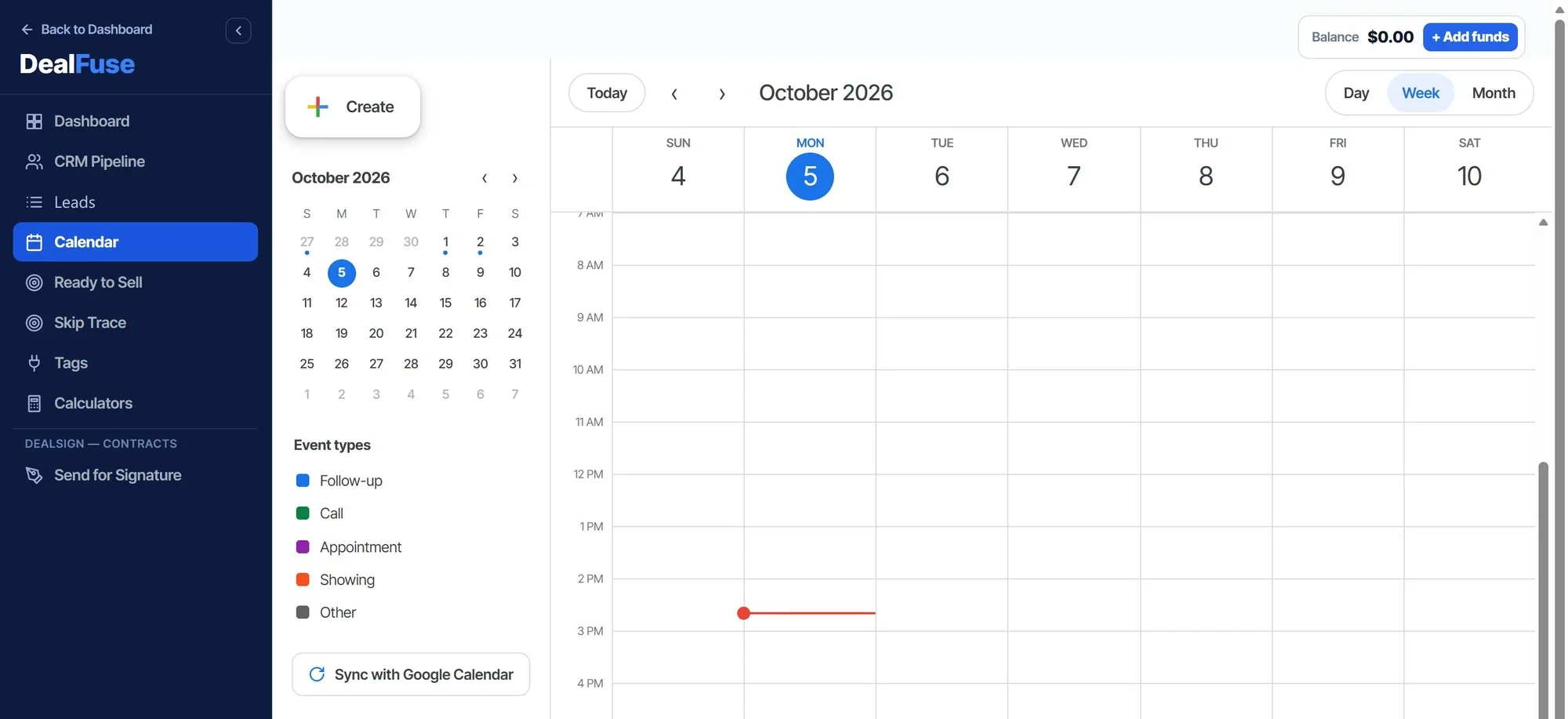
Every follow-up, call, appointment and showing lands here, color-coded by type, with the lead's name on it. Switch between Day, Week and Month at the top right, and use Create to add something by hand.
To book an appointment with a lead, open the lead and click Push to Calendar in its Events box. It fills in the appointment for today at the next hour with the property address in the notes. Change the date or time, click Save, and it appears here. Click any event to open it, and Open lead takes you straight back to the lead.
Click Sync with Google Calendar once and your appointments also show up on your phone.
Mark numbers and leads with Tags
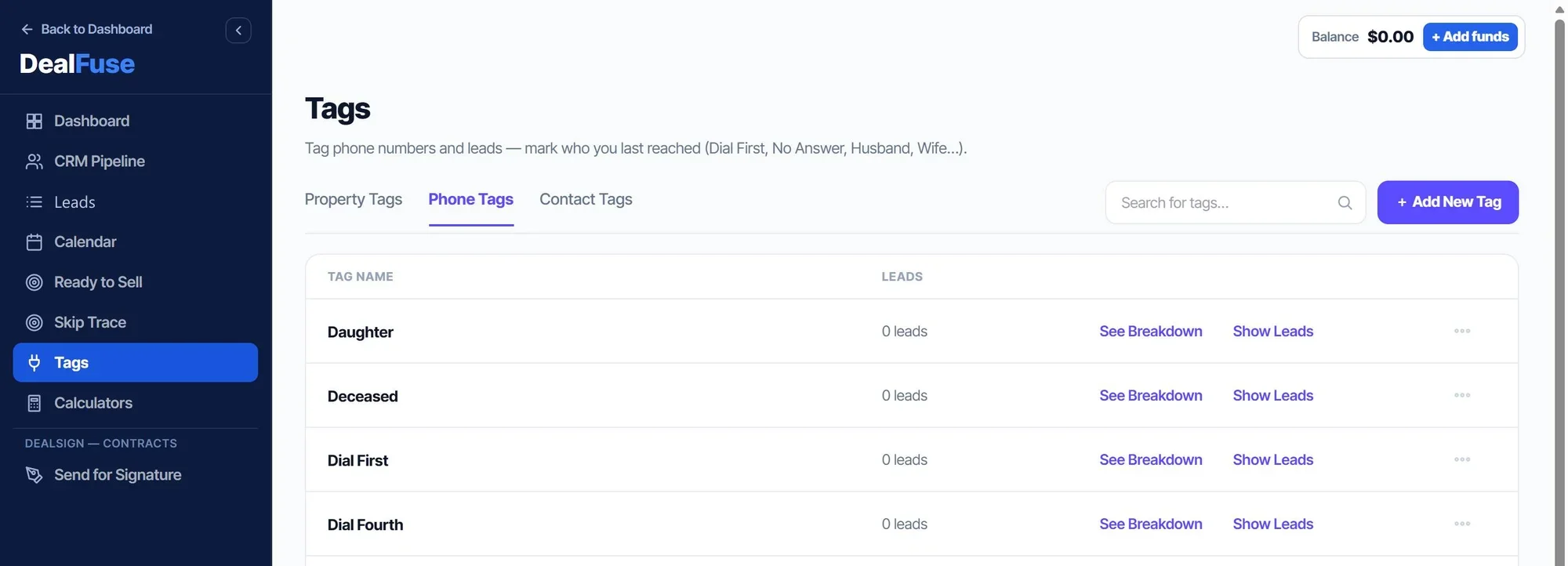
Tags are quick labels. There are three kinds:
- Phone Tags mark individual numbers: Dial First, Do Not Call, Wrong Number, Husband, Wife and so on. This keeps you from calling a bad number twice.
- Property Tags and Contact Tags label the house and the person.
- Show Leads next to any tag lists every lead that has it. + Add New Tag creates your own.
Run your numbers with Calculators
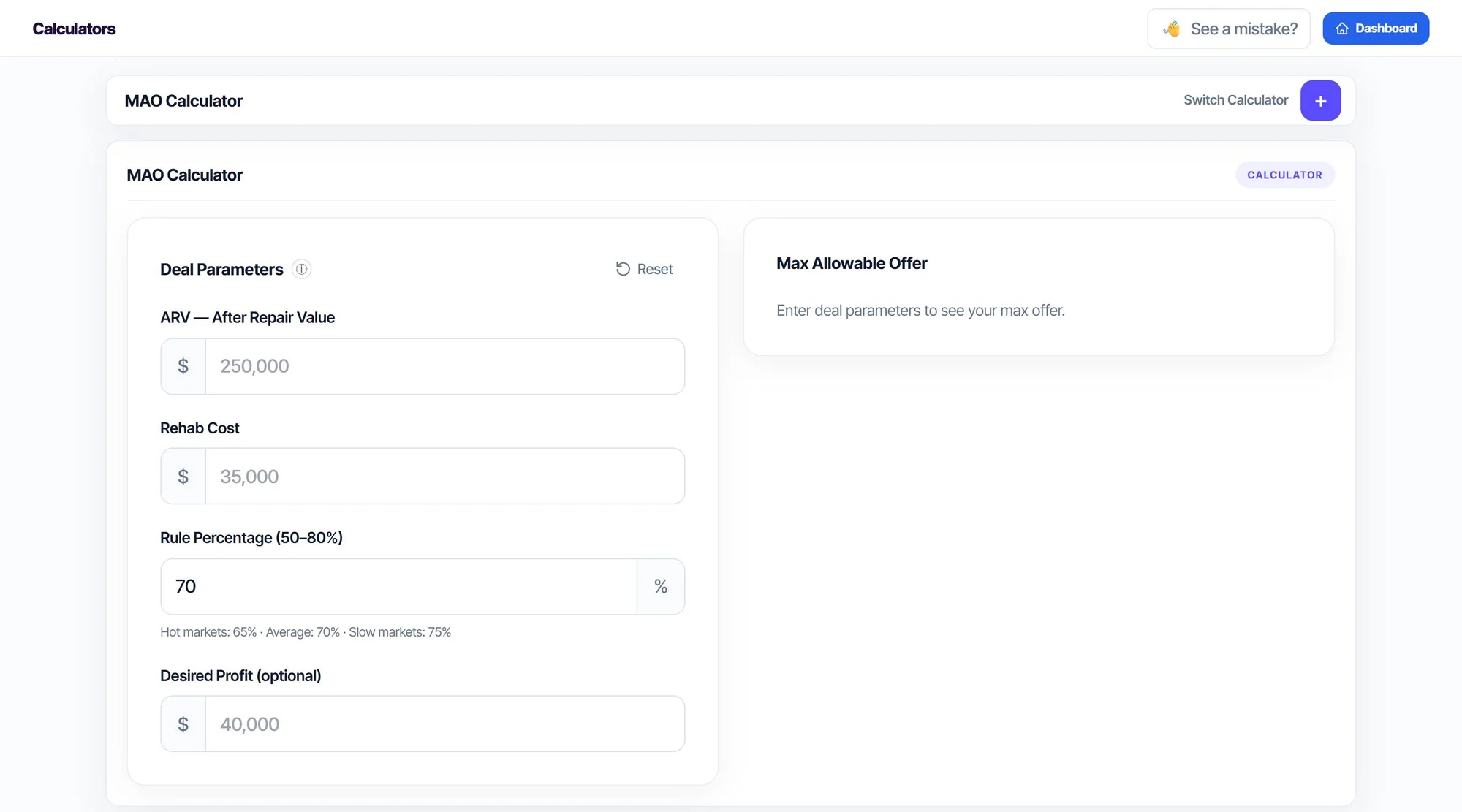
The MAO Calculator gives you a max allowable offer from the after-repair value, the rehab cost and your rule percentage (70% is typical; 65% in a hot market, 75% in a slow one). Add a desired profit if you want it held back too. Switch Calculator opens the others.
Send contracts with DealSign
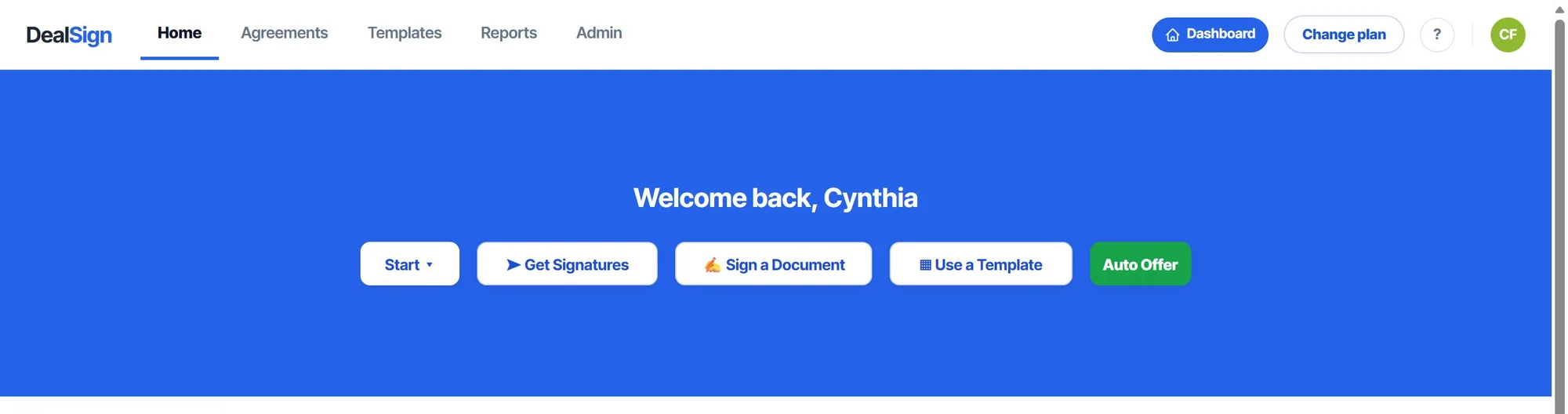
Send for Signature in the menu opens DealSign. Use Get Signatures to send a contract out, Sign a Document to sign one yourself, or Use a Template to reuse a contract you send often.
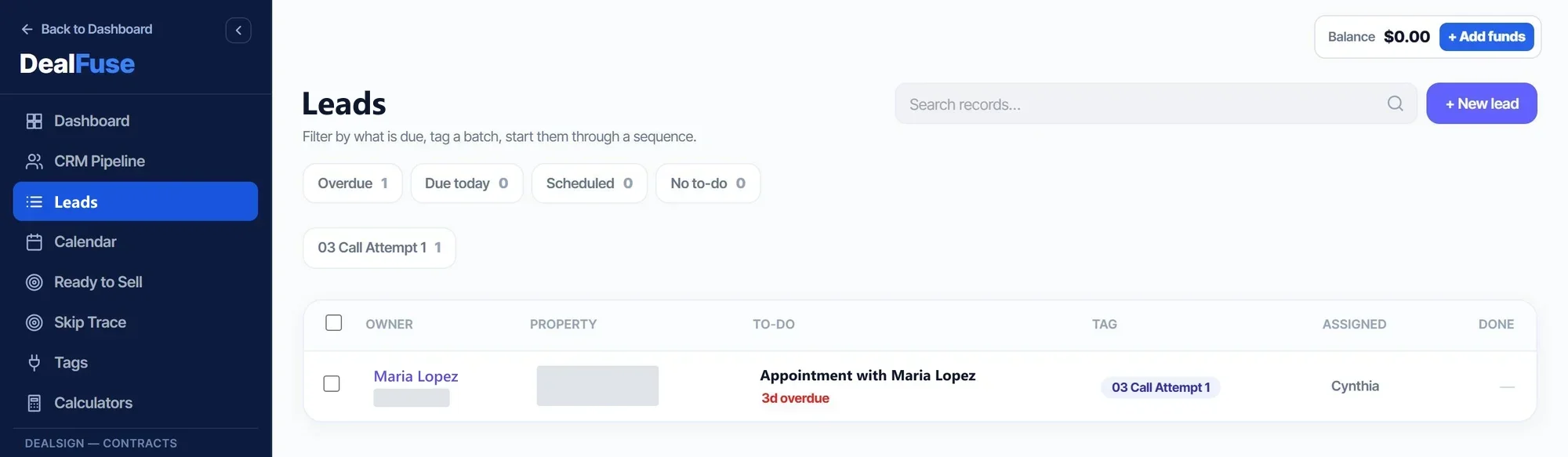
Find phone numbers with Skip Trace
If you have a list of owners without phone numbers, upload it as a CSV (owner name plus an address) and get their phones and emails. This is pay-as-you-go from your account balance: $0.12 per owner searched, any amount, whether or not a number is found. Nothing is charged until you run the trace, and company or trust owners are skipped for free.