Add DealSherpa to your iPhone
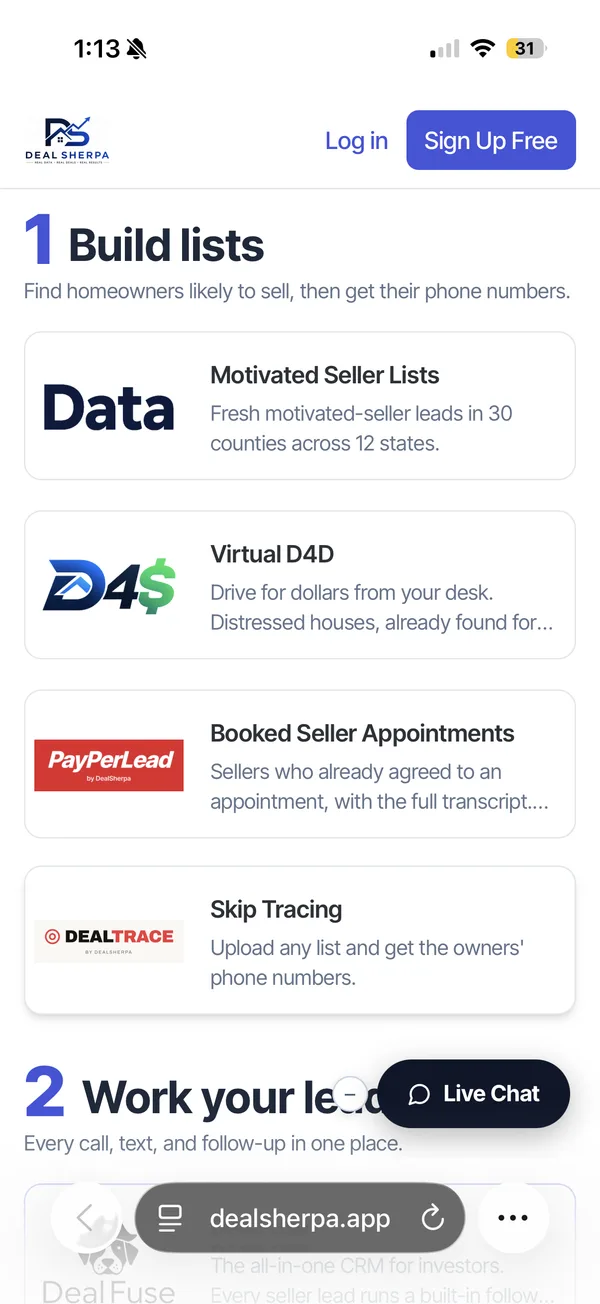
Use Safari, the iPhone's own browser. It takes about 30 seconds. The red circles show where to tap.
Older iPhone with the Share button (a square with an arrow pointing up) at the bottom of Safari? Tap it and go straight to step 3. Using Chrome on your iPhone? Tap the Share icon in the address bar, then Add to Home Screen.
- 1
Open dealsherpa.app in Safari and sign in. Then tap the ••• button next to the address bar.
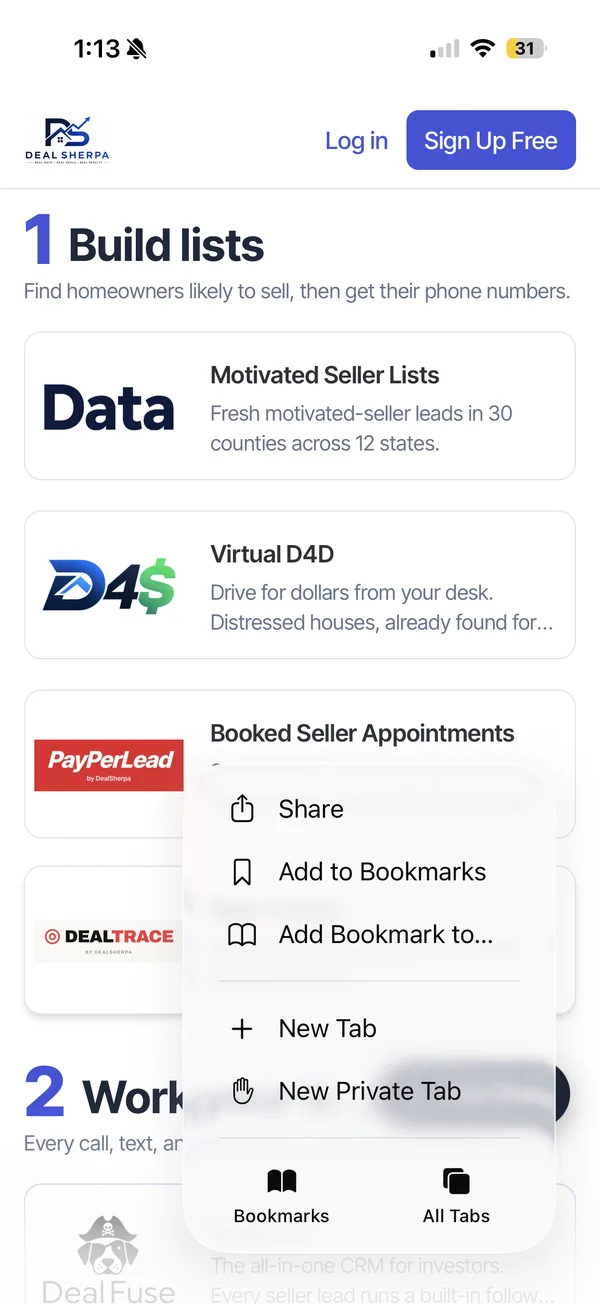
- 2
Tap Share.
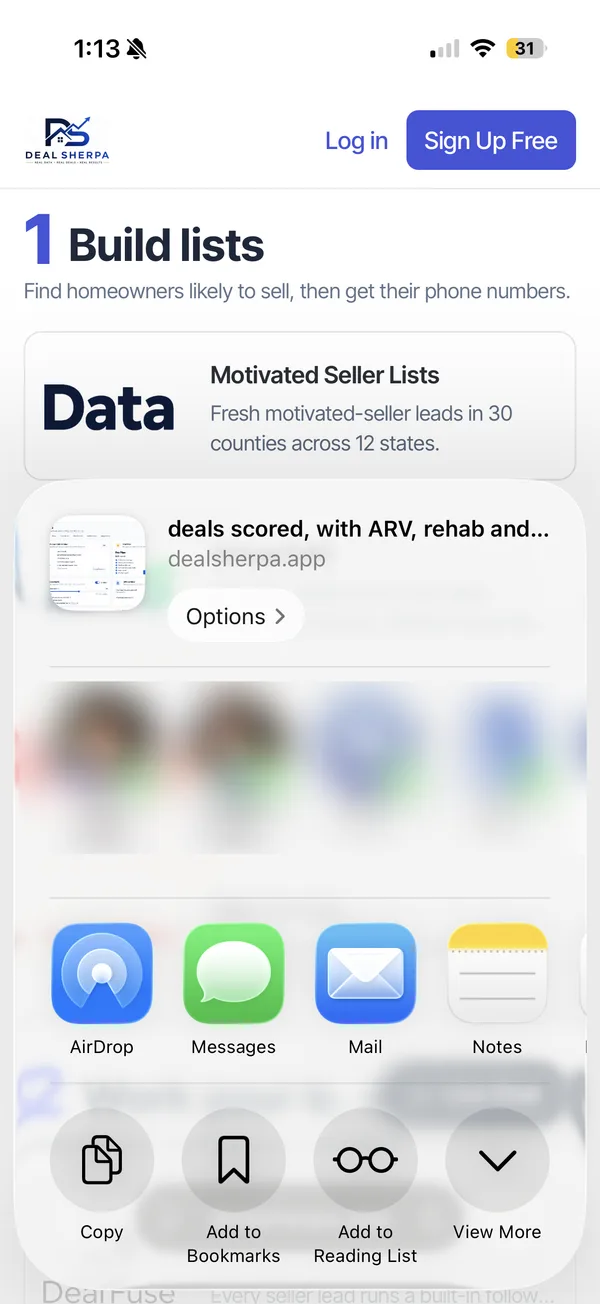
- 3
Tap View More to see the rest of the list.
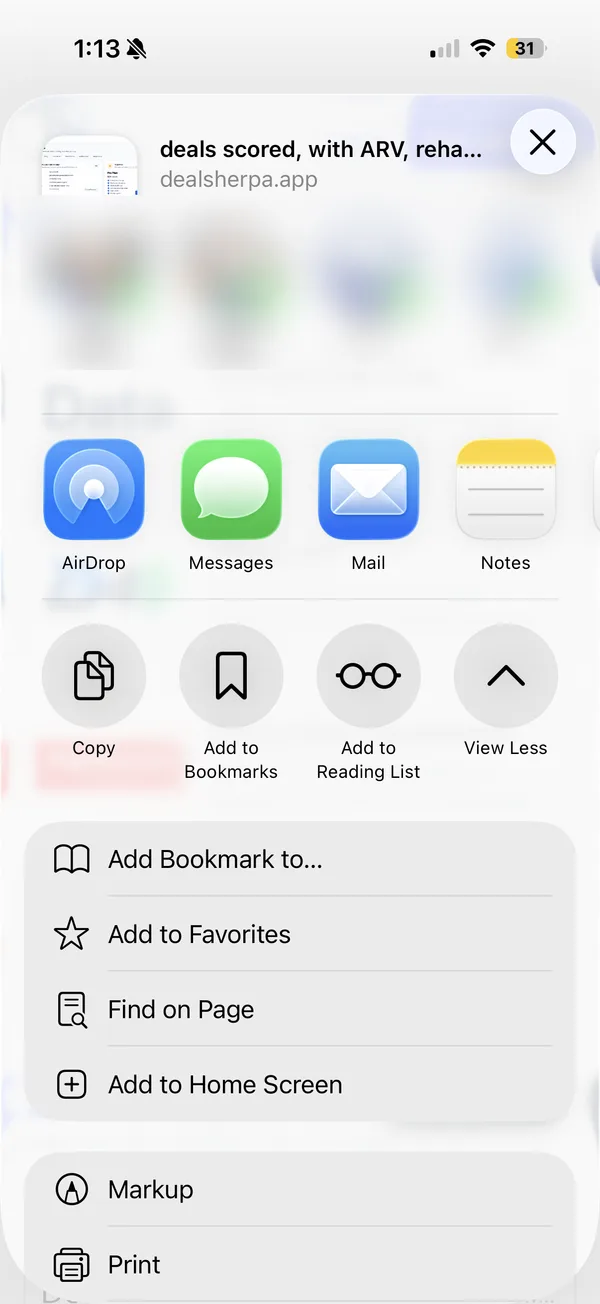
- 4
Tap Add to Home Screen. Leave "Open as Web App" on if you see it.
- 5
Tap Add. The DealSherpa icon is now on your home screen. Open DealSherpa from that icon from now on; you stay signed in.
Add DealSherpa to your Android phone
Use Chrome. Samsung phones can also use Samsung Internet.
- Open Chrome and go to dealsherpa.app. Sign in like you normally do.
- Tap the three dots ⋮ at the top right.
- Tap Install app (or Add to Home screen), then Install.
- The DealSherpa icon appears on your home screen. Open DealSherpa from it from now on.
- Samsung Internet: tap the menu ≡ at the bottom, then Add page to → Home screen.
Screenshots are from a sample account; your own leads appear in their place.